


Introduction
NevTan Drive is a secure place to keep your files online — upload them, organize them into folders, open them without downloading, edit documents and PDFs right in the browser, and share them with exactly the people you choose.
These are the NevTan Drive docs: they walk through every part of the product, from creating an account to fine-grained sharing controls. If you are brand new, start with the Quickstart — it gets you from sign-up to your first shared file in about five minutes.
What you can do
Upload files and whole folders, nest them however you like, then find anything again with search, type filters, and sorting.
Read morePreview without downloadingImages, PDFs, video, audio, text, Word, Excel and PowerPoint files all open in a preview window inside Drive.
Read moreEdit in the browserWord documents, spreadsheets, presentations, plain text, and PDFs each get a full editor — no desktop software needed.
Read moreShare with controlInvite people by email as viewer, commenter, or editor, or publish a link with an expiry date, a password, and download/copy/print rules.
Read moreHow Drive is laid out
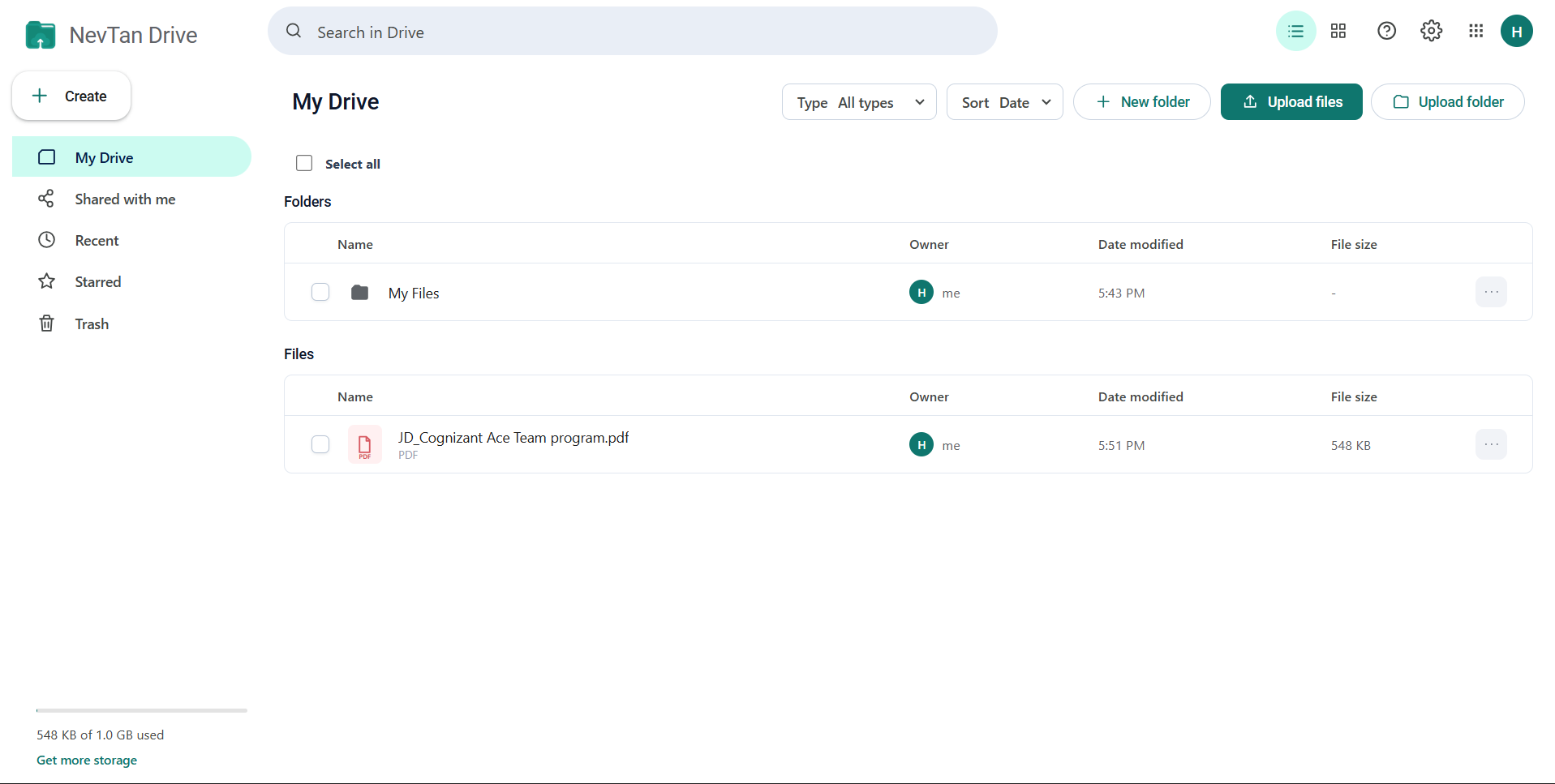
Every screen in Drive shares the same frame: a sidebar on the left for navigation, a top bar for search and account controls, and the content area in the middle. The sidebar has five destinations:
| Destination | What it holds |
|---|---|
| My Drive | Everything you own, plus files other people have shared with you, arranged in folders. |
| Shared with me | Files other people have given you access to. You cannot delete or move these — only the owner can. |
| Recent | Files you have opened or changed lately, newest first. |
| Starred | Files you have marked with a star for quick access. |
| Trash | Deleted files and folders, kept until you restore them or delete them forever. |
One account for every NevTan app
Your NevTan account signs you in to Drive, Mail, Sign, Cloud, Engage, Calendar, Keep, and Tasks. Sign in once and the app switcher in the top bar moves you between them. Storage is shared too — the meter in Drive counts your Drive files and your NevTan Mail mailbox as one combined total. See Accounts and sign-in and Storage and quota.
Where to go next
Sign up, upload a file, and share it — in five steps.
Read moreThe Drive workspaceA tour of every control in the sidebar and top bar.
Read moreSharing and permissionsRoles, share links, passwords, and access requests explained.
Read moreKeyboard shortcutsEvery shortcut in the PDF editor and the document editors.
Read moreCommon questions
Where should I start if I am new to NevTan Drive?
Start with the Quickstart. It goes from sign-up to your first shared file in about five minutes. After that, The Drive workspace tours every control in the sidebar and top bar, so the rest of these pages assume less.
Do these docs cover the other NevTan apps?
No — these are the NevTan Drive docs. One NevTan account signs you in to Mail, Sign, Cloud, Engage, Calendar, Keep, and Tasks as well, and NevTan apps and single sign-on explains how Drive sits alongside them. Each of the other products has its own documentation.
What is the difference between My Drive and Shared with me?
My Drive holds everything you own, and also lists files other people have shared with you so you can work in one place. Shared with me shows only the files other people have given you access to. You cannot delete or move those — only their owner can.